

Adding extra pages to your fax lets you send multiple documents at the same time, or make quick addendums to your document if you need to edit a page and then re-add it. Combining multiple documents into a single fax can save transmission time and be more convenient for you.
Here’s how to add pages to any PDF you’re faxing before you send it with Fax.Live. Fax.Live works with PDF files because they are the most versatile file formats for sharing information.
How to Insert a Page Before Sending a Fax
Step 1: Upload your fax
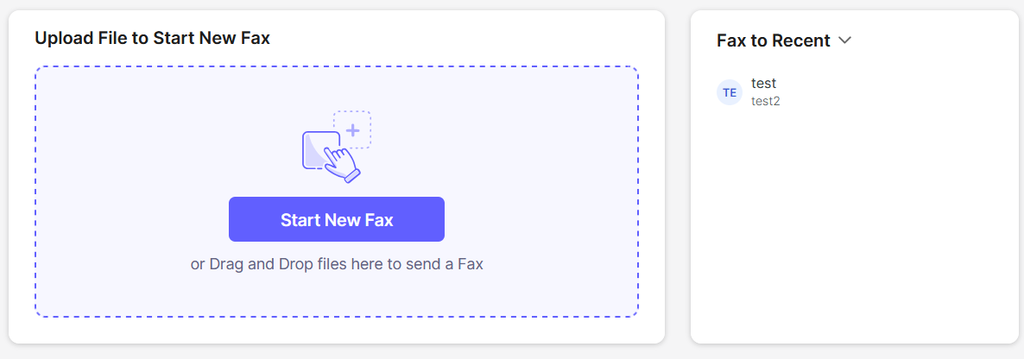
Log in to your Fax.Live account or create a Fax.Live account. In the Fax.Live dashboard, click Start New Fax and navigate to the PDF you want to fax is, whether it’s saved on your computer or in your Fax.Live dashboard. Or, drag and drop the PDF directly into the Fax.Live interface.
Fax.Live recommends faxing PDFs, as a PDF will retain formatting for anyone who opens it on almost any computer or device.
Step 2: Add new pages
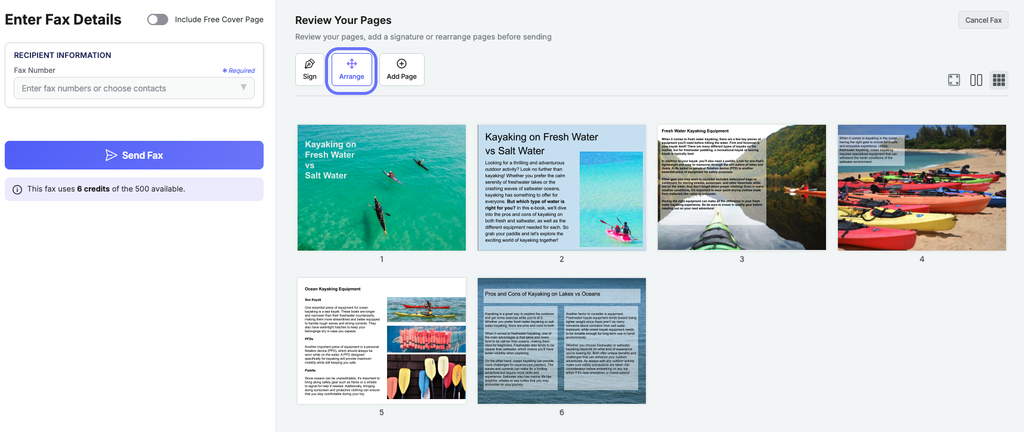
In the Fax.Live sending interface, click the Arrange button to add new pages to your document. The Arrange button is located under the Review Your Pages menu. This will open the page organization menu.
Step 3: Insert page
In the page organization menu, either click the Insert Page button at the top of the menu or the + sign next to the page where you want to insert your new page. You will then be prompted to upload a PDF that you want to add to your document.
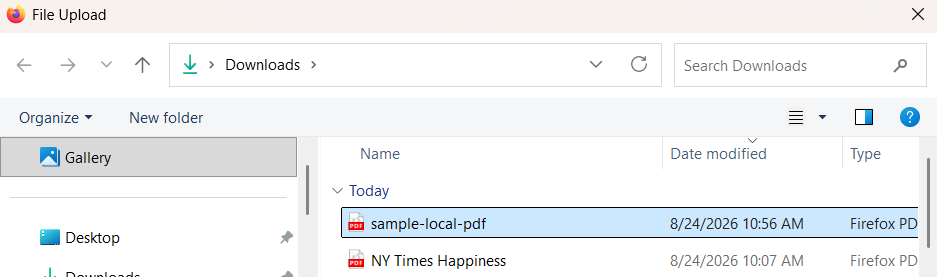
Once you’ve found the extra page that you want to add to your document, click Upload.
Step 4: Arrange your pages
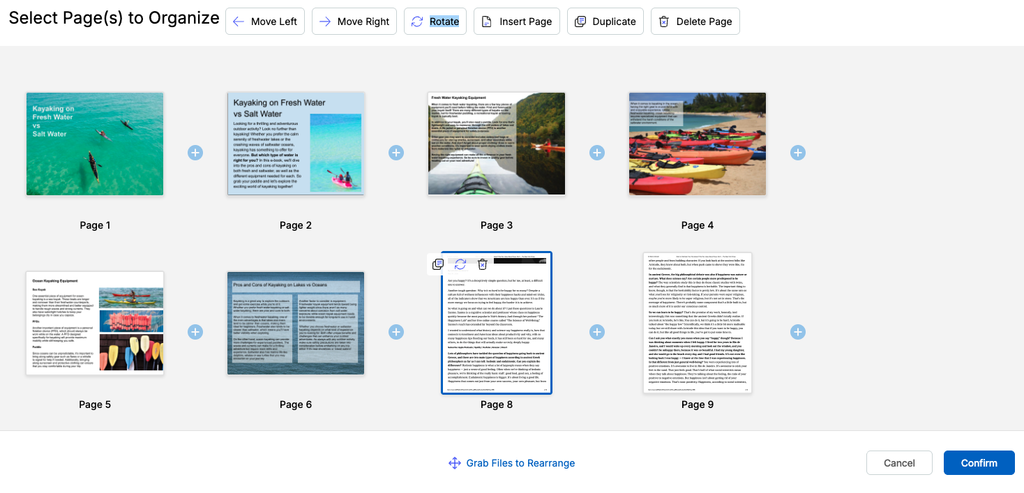
Whether you added your new pages in the place you’ve wanted in your document or need to change their positions, you can click the new pages that you’ve added and then click Move Left or Move Right to change their positions. You can also just click and drag where you want the new pages to be placed in your fax.
Step 5: Confirm your changes and send your fax.
Once you’ve added and positioned your new fax pages, click Confirm to save the changes. Enter your recipient’s information and then send your fax!
If you need to remove pages, use the Delete Page button.
FAQs About Adding PDF Pages to Your Fax
Can I delete a page if I mistakenly added it?
Yes, you can delete any pages you’ve added by mistake or extra pages you don’t need by selecting the page and clicking the trash can icon. Or, click the Delete Page button at the top of the page management menu.
What if I want to move the page because I inserted it in the wrong place?
To move pages inserted in the wrong place, click and drag them where you want them arranged in your document or click the Move Left or Move Right buttons. See how to rearrange your fax pages.
Can I insert multiple pages?
Yes, you can insert multiple pages at a time. Either insert a document with all the extra pages you need and then rearrange them, or add pages on at a time.
Can I use this to add a cover page?
Yes, you can add a cover page that you’ve created as long as it’s already saved as a PDF on your computer. You can add the cover page and then arrange it to be in front of your fax. Alternatively, Fax.Live has an optional free cover page that you can add to your fax before sending.
ID 183744928 | Add | Maneesh Upadhyay | Dreamstime.com