

Rearrange the pages of your fax using Fax.Live’s arrange tool. This feature allows you to switch the order of the pages in any document you fax using our online faxing tool. We make it easy to fax documents online without a fax machine and a dedicated telephone line.
This guide will show you how to:
- Rearrange the pages on your fax
- Send a rearranged fax
- Rotate a page
- Insert a new page
How to Rearrange Fax Pages
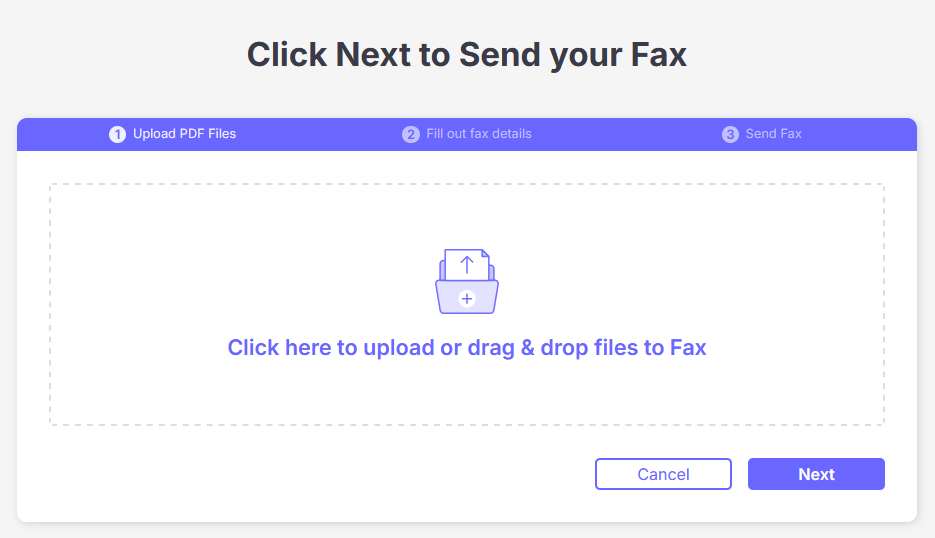
- Upload your multi-page PDF to Fax.Live for sending. (Currently, Fax.Live works only with PDFs. If you need to convert a document to PDF, visit our sister site, PDF.Live.)
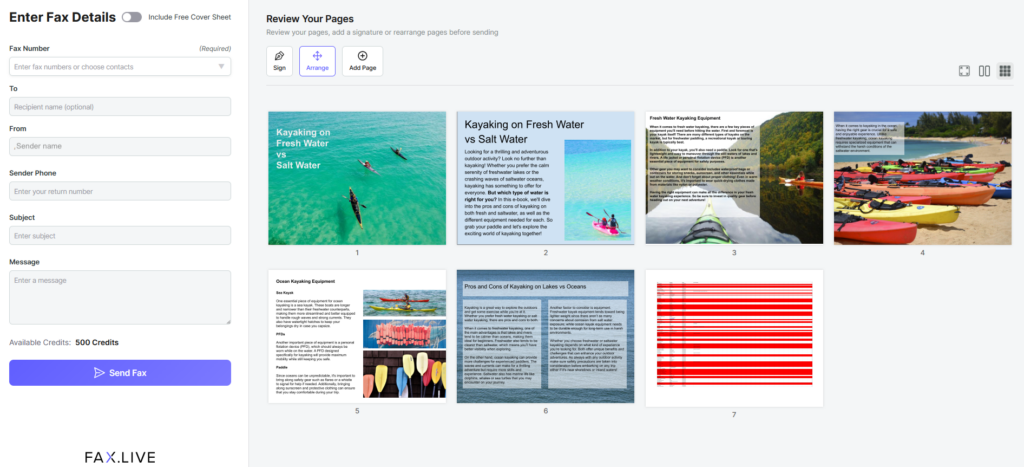
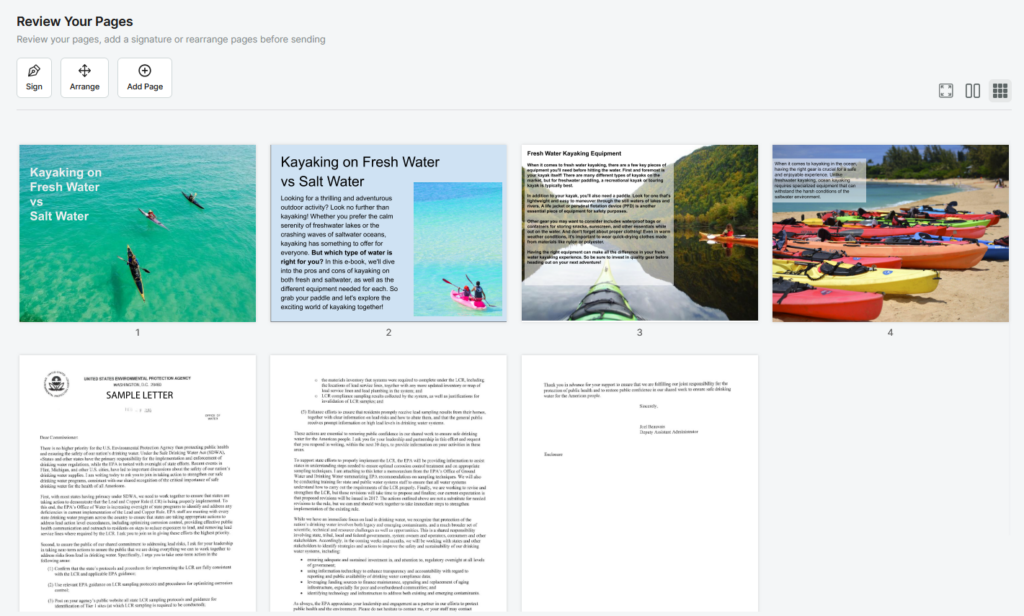
- In the Fax.Live sending screen, click Arrange, which is under the Review your pages section.
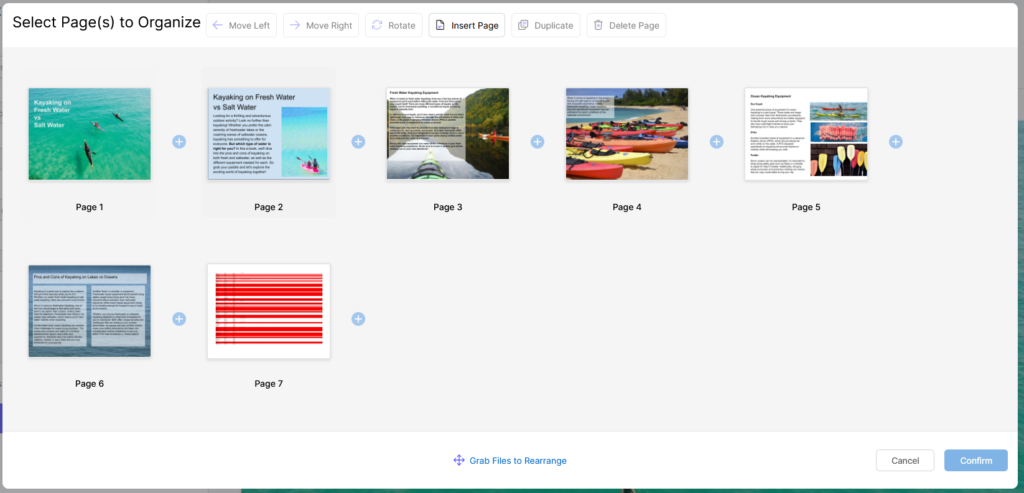
- From this screen, you can click a page that you want to move. Then, click Move Left or Move Right to change its order in the document. You can also click and drag the pages to where you want them placed in the document.
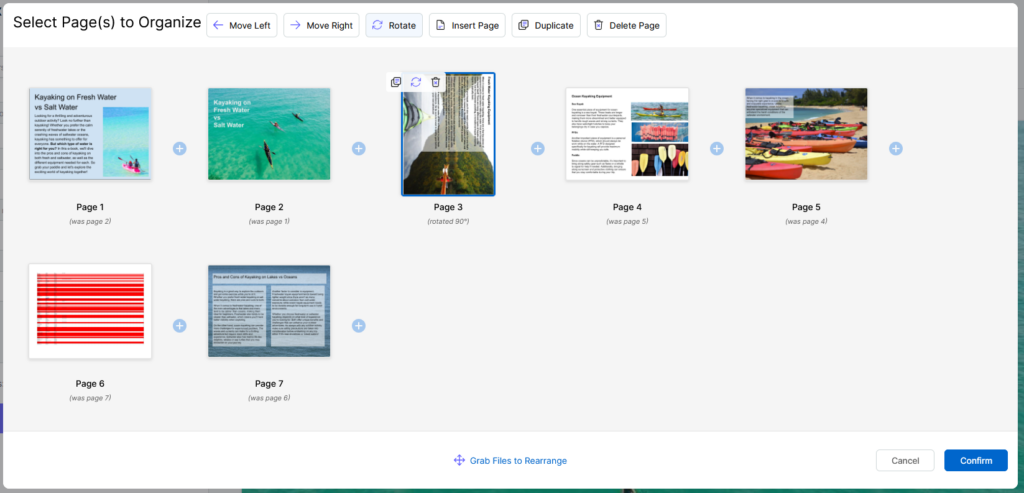
In the screenshot below, we’ve slightly rearranged the pages of this document using the arrange tool. The tool will tell you where the page was previously placed so that you don’t lose track of the original order.
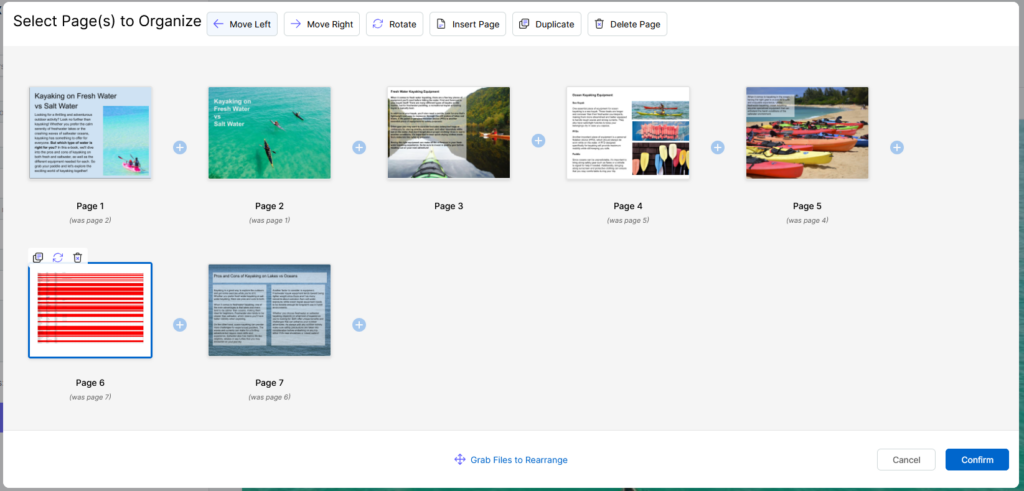
Once you’ve arranged the pages in the order that you want, click Confirm to have the changes applied to the document. Otherwise, the page order changes will not be applied.
FAQs About Fax Page Rearranging
Can I rearrange pages on both mobile and desktop?
You can rearrange pages only on the desktop version of Fax.Live.
Can I rotate a page if I uploaded it wrong?
To rotate a page if you uploaded it wrong, navigate to the Arrange menu when you send a fax, select a page in the document, and click Rotate. You can also click the circular arrow icon with a page selected. Remember to confirm your changes!
How do I remove a page without deleting the whole document before faxing?
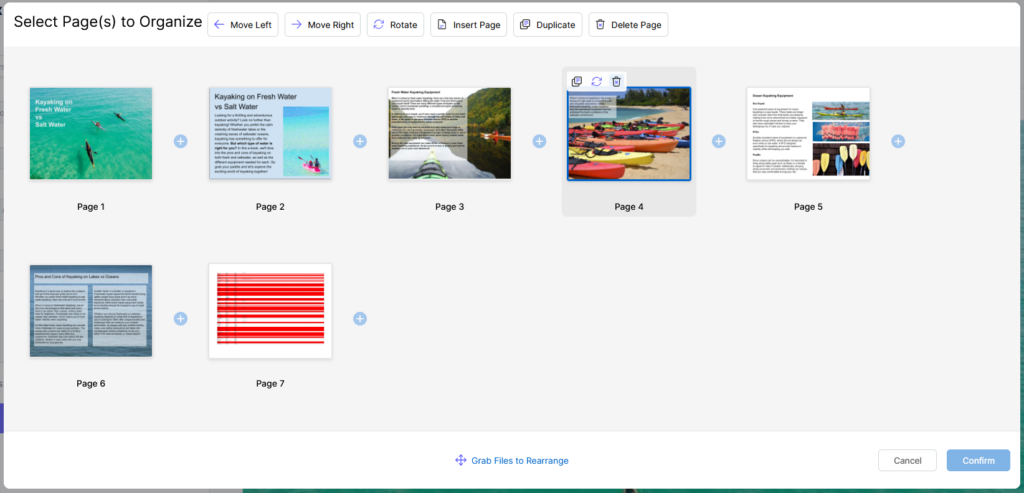
If you just want to remove one page in a document, navigate to the Arrange menu once you’ve uploaded your fax and click the page you want to remove, and then click Delete Page. You can also click the trash can icon next to the page.
Can I add pages from a second document and sort the order?
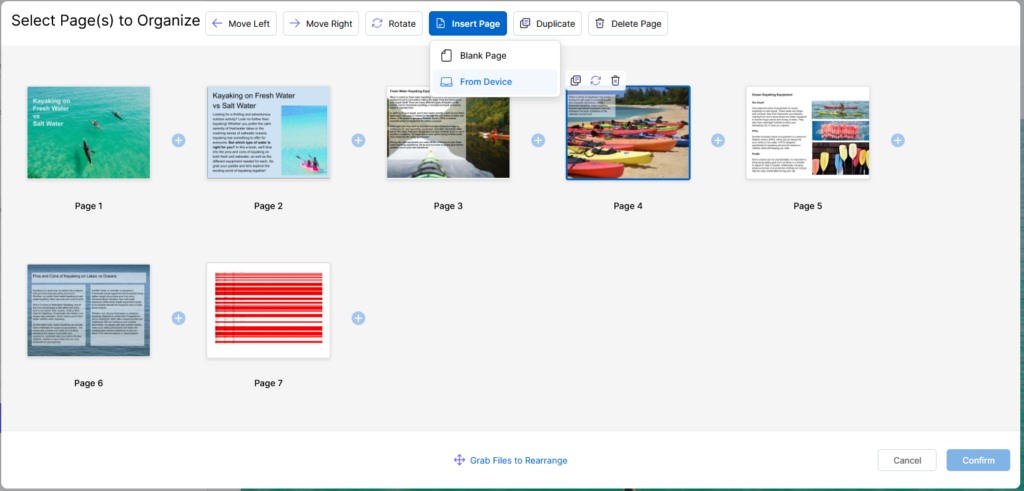
To add new pages from a second document to your fax, open the fax in Fax.Live and click Arrange. In the Arrange menu, click the Insert Page option. You can either insert a blank page or select From Device to insert pages from a different PDF into the document you want to fax.
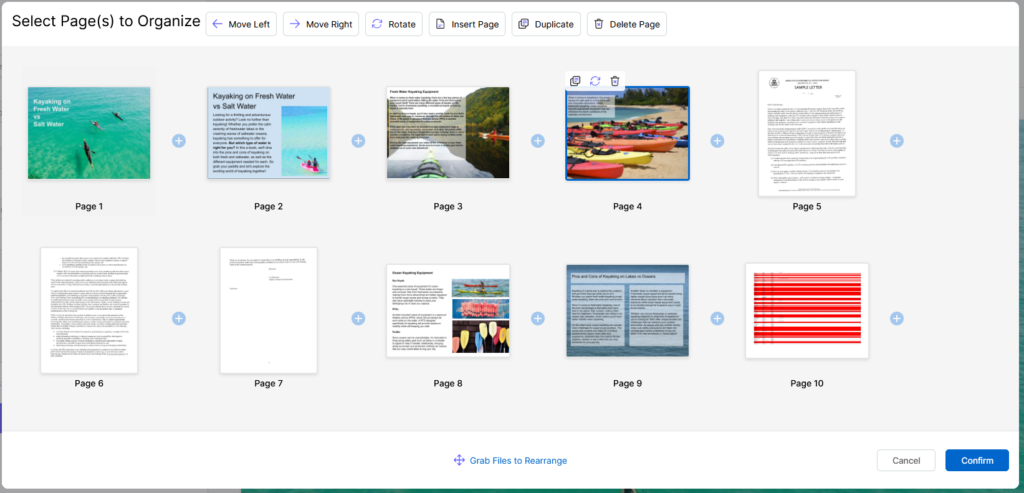
Once you’ve selected From Device, navigate to the pages you want to have added to your fax. Click Open once you’ve found the document and you’ll see the new pages in your document.
Will the recipient receive the pages in the exact order I send them?
Yes, the recipient of your fax will see the pages of your fax in the order they are sent. Once you’re done arranging them, click Confirm and review the final order in the Fax.Live dashboard.
Can I save the reordered document for future use?
Yes. When you send the reordered document to another fax number, Fax.Live will save the new, rearranged document in the dashboard. You can then download a copy of the new document that you arranged. You will need to send this document to have the changes stored to your Fax.Live account.
Is there a limit to how many pages I can reorder?
No, as long as the page is contained within the document you’ve uploaded to Fax.Live, there is no limit on how many pages you can rearrange, rotate, or delete. Keep in mind that the changes will not be saved until you send your fax, which uses up your account credits.