With Fax.Live, you can resend any sent fax to ensure that your recipient successfully received it. Easily view all of your saved fax history in the Fax.Live dashboard for a modern, convenient digital fax solution.*
- Resend previously sent faxes.
- Review the document before sending it.
- Edit faxes before resending.
- Reply to any fax sent to your account.
*Requires an active subscription.
How to Resend a Fax
- Log into your Fax.Live account.
- In the Fax.Live dashboard, hover over a fax that was sent by you (denoted as Sent to)
- On the right side, under Actions, click Resend.

4. The fax number you previously sent your fax to will automatically be filled out. Enter any additional details and sign, arrange, or modify your fax.
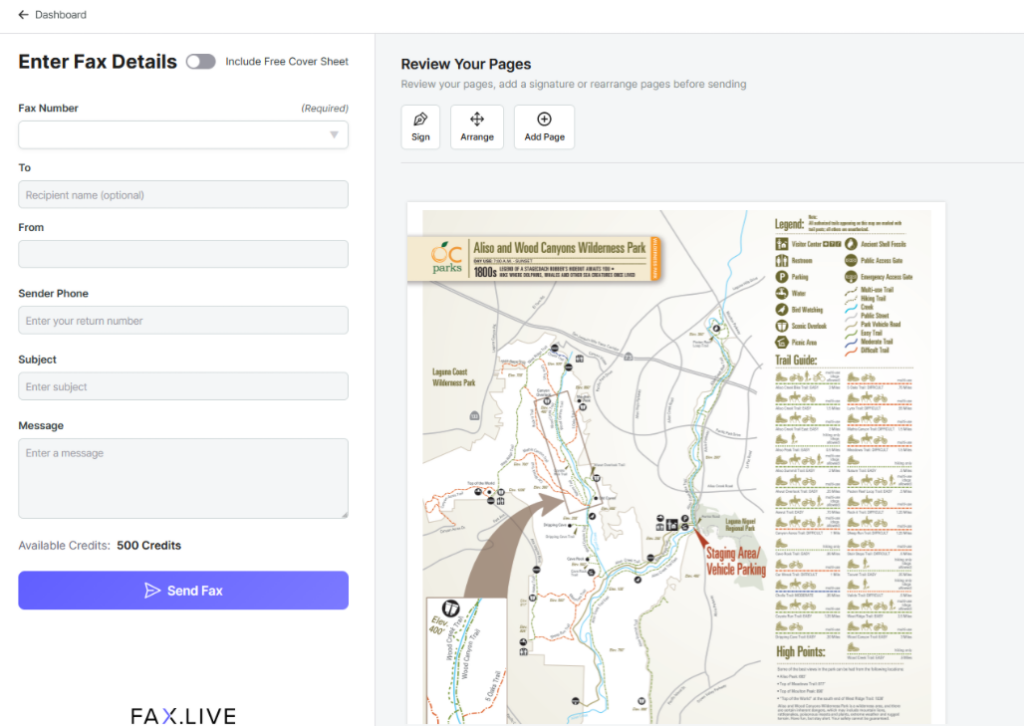
5. Click Send Fax to resend your fax. Wait for your fax to transmit before closing the page. Documents with more pages or images will take longer to transmit.
Bonus tip: If you hover over a received fax in your dashboard, notice that you can Reply to senders. Clicking this feature will prompt you to upload a new document to fax. It will automatically fill in the sender’s fax number!

FAQs About Re-faxing
Can you resend a fax without scanning again?
Yes, the resend fax feature on Fax.Live takes a previous fax that you sent to someone and resends it as a new fax. If you want to make small modifications to it (such as signing), you can do so in the Review Your Pages menu.You can add pages, remove pages and rearrange fax pages if needed.
Can I resend a fax to a different number?
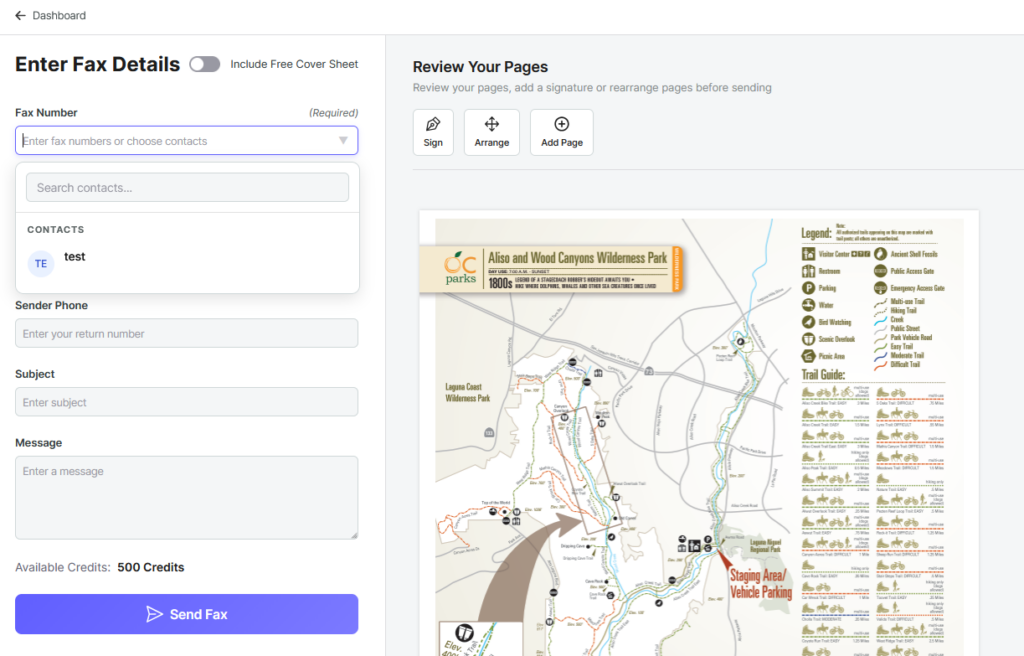
Yes, you can resend a fax to a new number. When you click Resend under the actions tab, click the Fax Number and delete the previous fax number that you sent to. Enter the new number or click a contact that you want to send the fax to. You can then click Send Fax to send your fax document to this new number.
Can I change the cover letter before I resend a fax?
Yes, if you made the cover sheet through Fax.Live, you can change the details of your cover sheet before sending by checking the Include Free Cover Sheet option at the top of the menu. Then, enter your new fax information. We will automatically place this cover sheet in front of your fax.
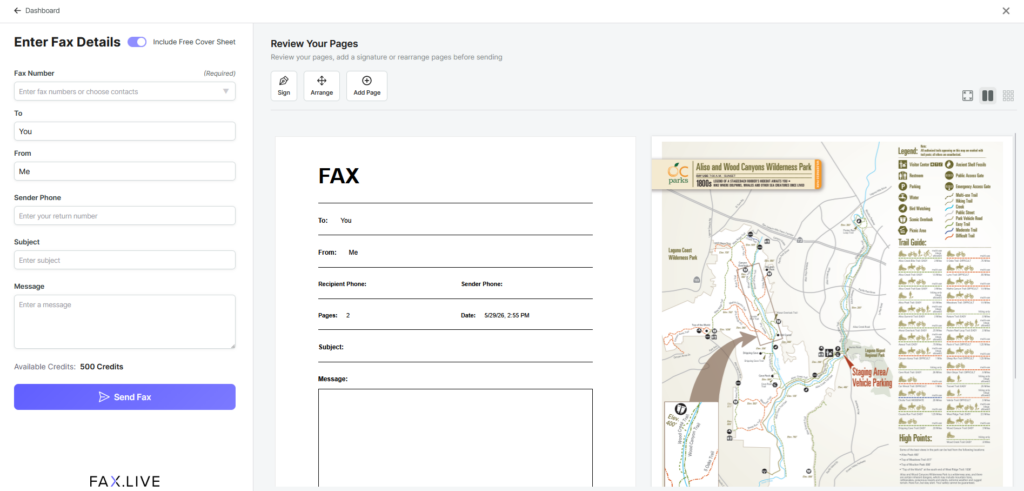
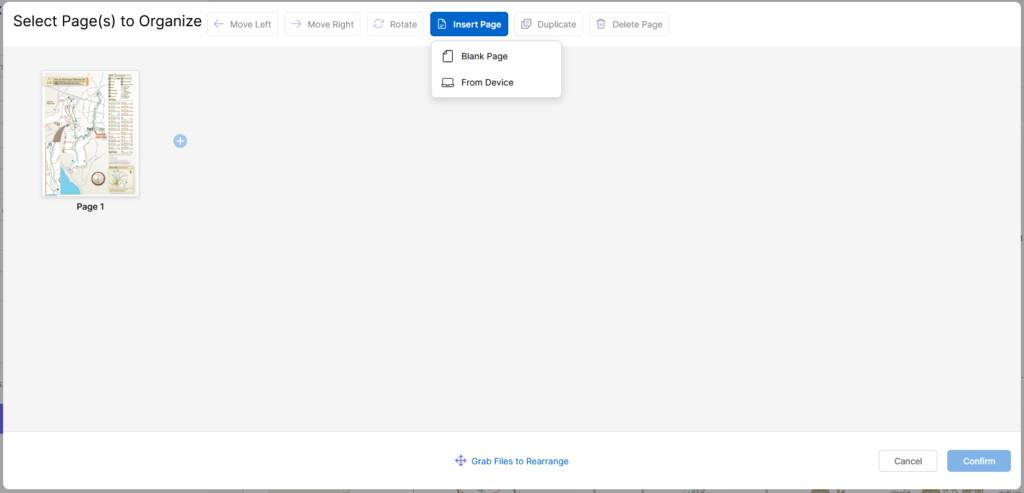
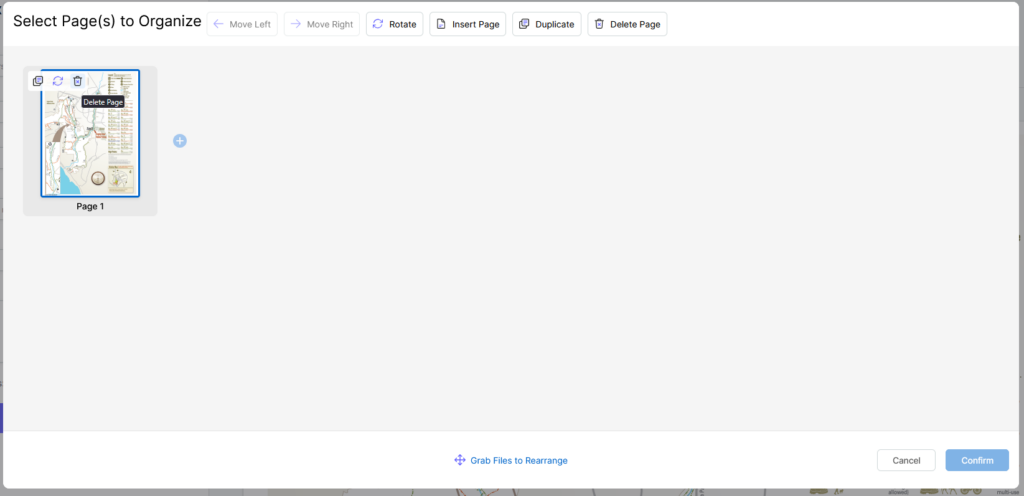
If you made your own cover sheet, or want to remove a cover sheet, click the Arrange button and click the page that you want to remove. Then, click Delete Page and Confirm.
Can I add or remove pages before sending a fax again?
Yes, you can add or remove pages from a fax in the Arrange menu. This is useful for altering your fax or adding extra pages to it before sending. Click Arrange before sending your fax and click Insert Page to insert additional pages to your fax. Otherwise, click the page you want to delete and click Delete Page.