

Fax.Live requires your documents to be in PDF format. The PDF is one of the most commonly used formats for sharing documents, as it preserves formatting between almost all computers and smartphones, and it’s compatible with a variety of programs. Fax.Live currently works only with PDFs, so you need to first convert or save other formats as PDFs before you can fax them.
This article explains how you can convert your files to PDFs so you can fax them with a digital fax service like Fax.Live.
Save Document as PDF
If you’re creating a document in a document editor like Microsoft Word or Google Docs, you can download or save a copy of your document as a PDF. This is good if you’re creating an original document that you want to fax. Let’s walk through how to do this using Microsoft Word.
- Open a document in Microsoft Word.
- Select File and then Export.
- Click Download as PDF.
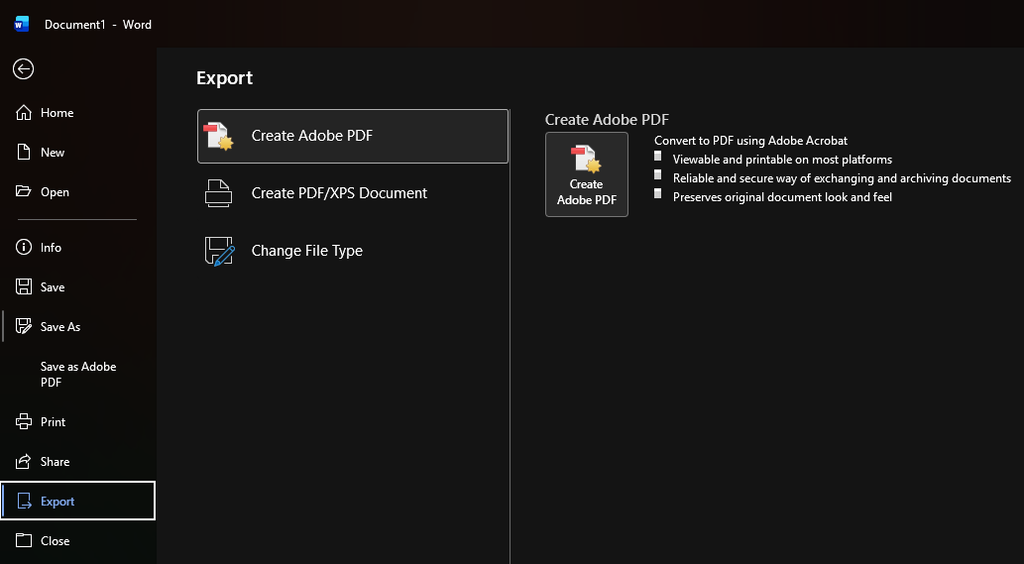
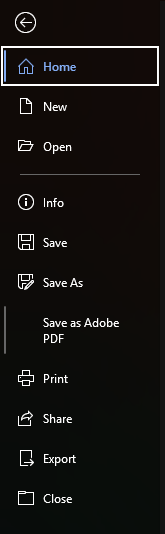
You can alternatively select Save As and click PDF from the list of options.
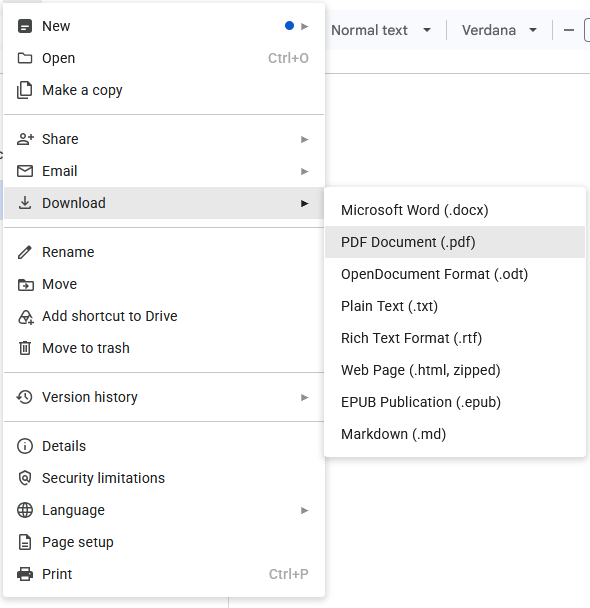
In Google Docs, you can also download or save a copy of a document as a PDF.
- Click File and hover your mouse over download.
- Click PDF from the list of options.
Convert Files to PDF
If you have an existing document or image that isn’t a PDF, you’ll need to convert it to a PDF in order to fax it. We recommend using PDF.Live’s file conversion services. PDF.Live can convert:
Let’s walk through converting a document to a PDF.
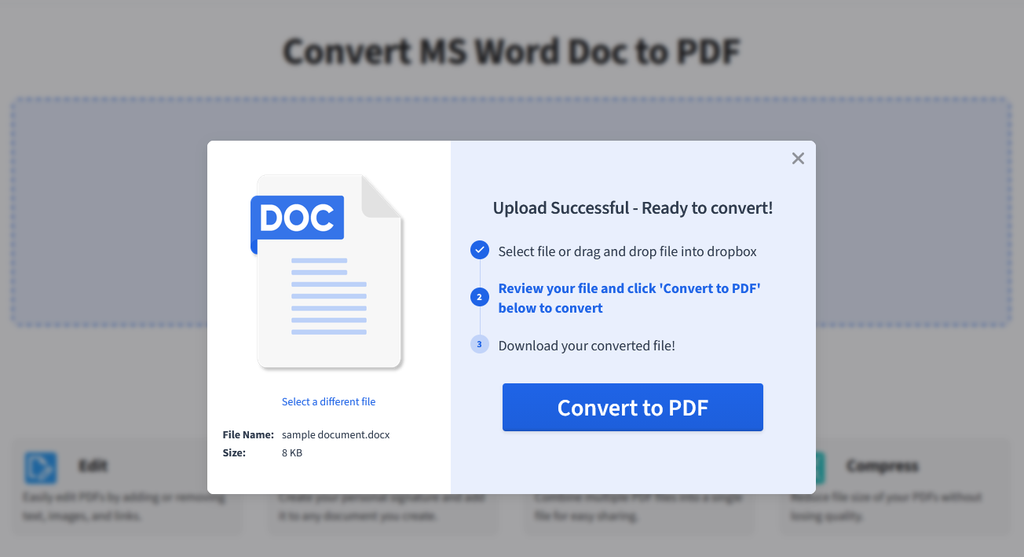
1. Go to PDF.Live’s DOC to PDF converter.
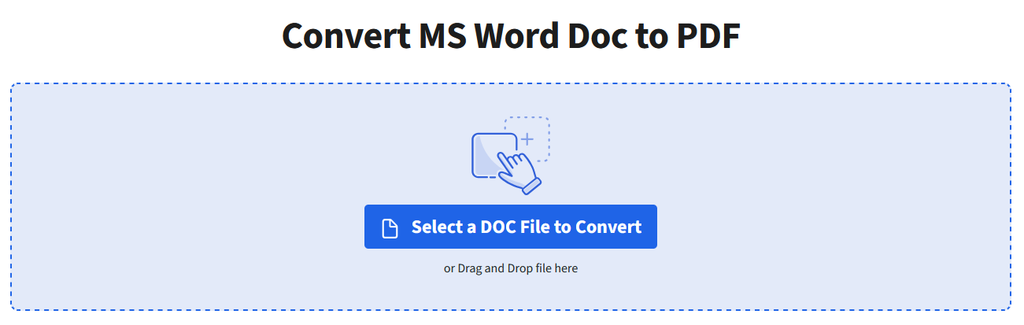
2. Upload your DOC to the converter. Either drag and drop it into the converter or select a DOC file from where it’s saved on your computer.
3. Click Convert to PDF to convert it and download the PDF version of your document.
Why do I PDFs for faxing?
A fax sends a picture of each page, not the text inside your file. PDFs lock your content into fixed pages, so Fax.Live can send each page exactly as you see it. Other formats, like DOC files, can shift layout and page breaks depending on the program that opens them, which could change what the recipient receives.
Can I convert to PDF with a mobile device?
Yes, PDF.Live allows you to make PDF conversions with your smartphone or tablet. As long as you have an internet connection, you can use PDF.Live to convert to a PDF and Fax.Live to fax.
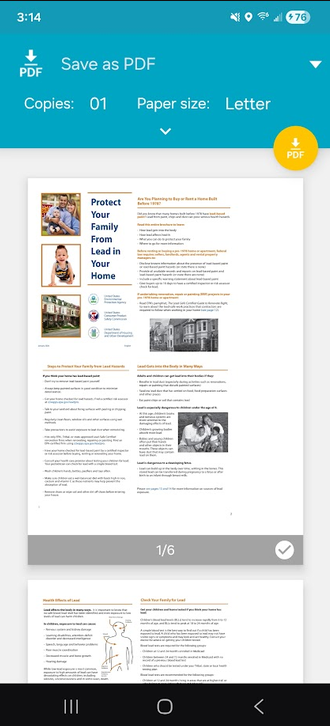
If your smartphone has a document editor, you can also save documents on your device as PDFs. In the image below, we opened a document on an Android device and selected the Print option. We then have Save as PDF as an option for printing.
What if I have a physical document I need to fax?
If you need to fax a physical document, you will first have to scan to fax and save it in a PDF format. You can do this in a couple of ways:
- Use a physical scanning machine (often included in a printer or copy machine)
- Use a scanning app to take high-quality pictures of your document using your smartphone
Once you’ve scanned your physical document, make sure that you export it or save it as a PDF, not a DOC or JPG image. But if these are your only options, don’t worry. You can still use PDF.Live’s file conversion services to convert your scanned document to a PDF.
ID 189201366 | Josepalbert13 | Dreamstime.com