

Fax.Live makes sending faxes to your favorites easier with the contact list. The contact feature allows you to save frequently used recipients’ information for easy faxing. This feature allows you to:
- Create fax contacts with a name, phone number, and email
- Filter and sort through your contact list
- Favorite contacts for your most frequent faxing
- Receive incoming faxes as a contact name rather than a fax number
How Fax.Live’s Address Book Works
- In the Fax.Live dashboard, the Contacts tab is where you create and manage your fax contacts. You can see in this example that we’ve created contacts, which are displayed in this example dashboard.
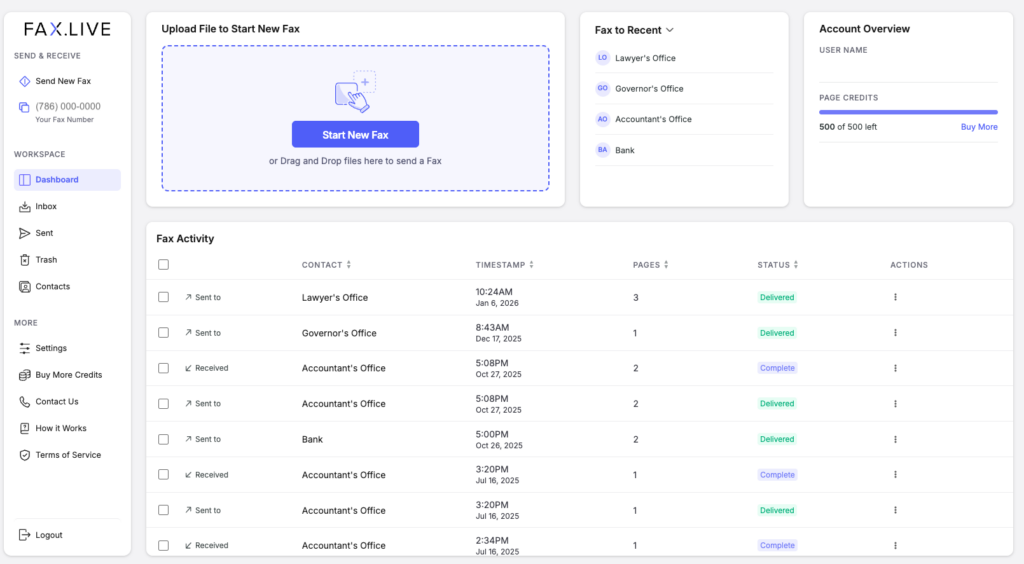
- In the Contacts tab, click +New contact to get started with a new contact.

- Enter the contact name and their corresponding fax number. These are the only two required identifiers for this contact — name and fax number.
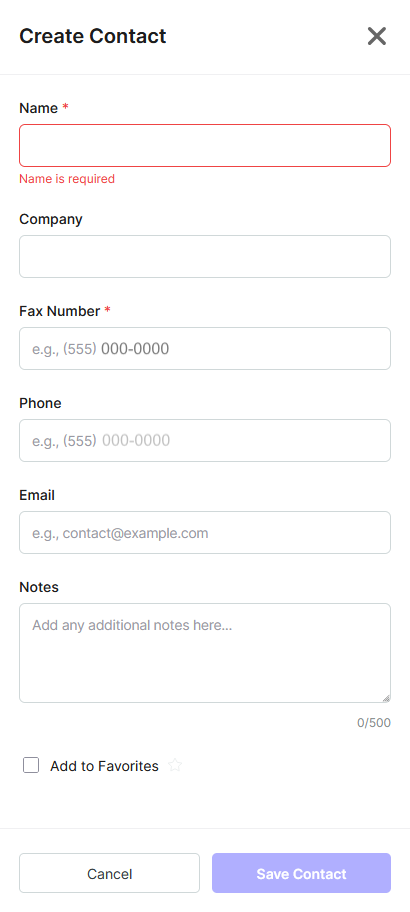
You can enter additional information to make it easier to identify the contact. For example, if you’re faxing a medical office with multiple branches or fax machines, you can make a note of which location this contact corresponds to. While creating a contact, you can also add it to your favorites.
View your Favorite contacts in the Favorites tab of the Contacts menu.
Click Save Contact to create the new contact.
- View your new contact in your contact list.

- When sending a new fax, you’ll now see the contact as an option for the outbound fax number.
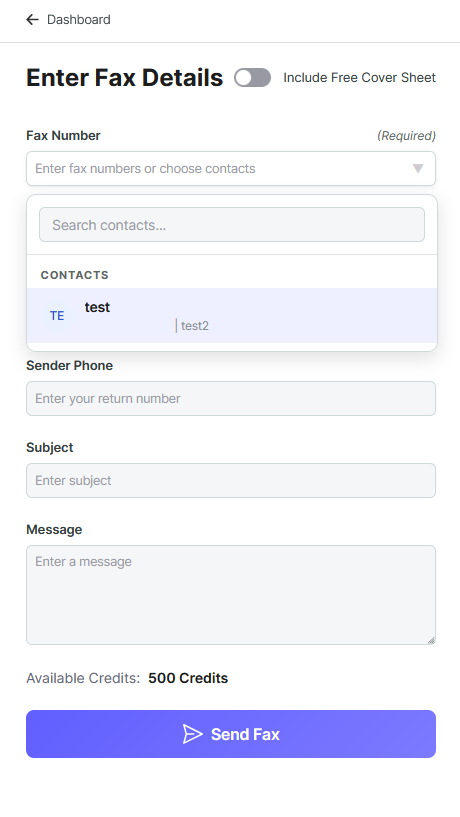
The contact will display the corresponding fax number, so you can make sure you’re sending it to the right place.
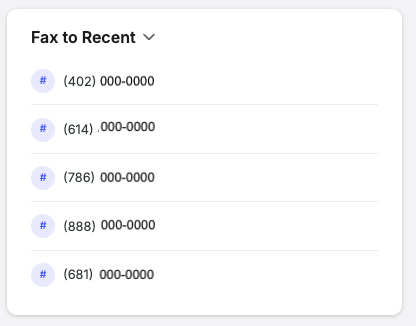
A bonus feature on the Fax.Live dashboard is the Fax to Recent menu, which enables quick sending to numbers you’ve recently used. Simply click one of the recent faxes and drag and drop it to quickly send a fax to that number.
Answers About Fax.Live’s Address Book
How do I edit a contact?
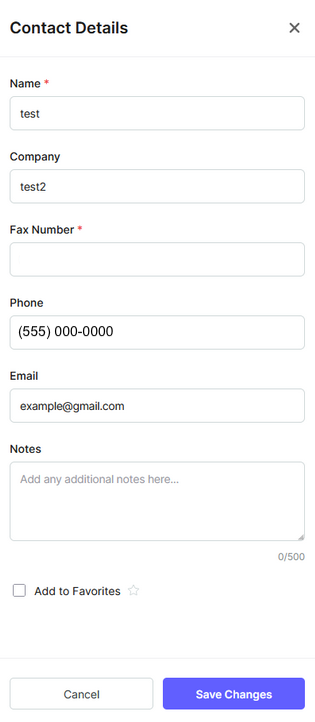
A fax contact can be edited at any time by clicking the pencil icon on the right of the contact. The same menu that you used to create the contact will appear.

Click Save Changes once you’ve edited your contact.
Is there a limit to how many contacts I can add?
No, Fax.Live does not have a fixed limit for how many contacts can be added. However, we recommend favoriting the contacts you frequently use, so they are easy to find. Remember, you can also search for contacts by name in the search bar.
How do I send a fax directly from my contacts list?
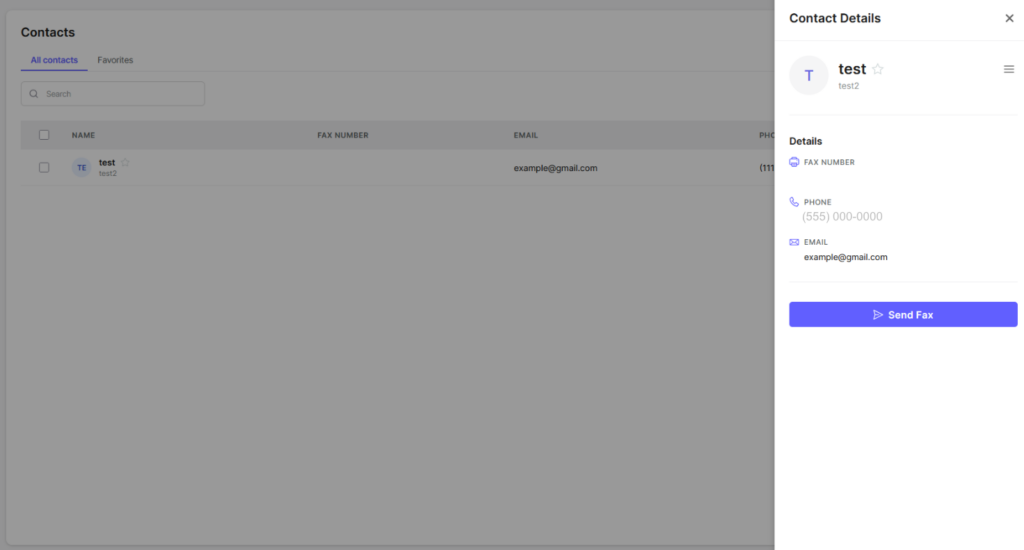
To fax directly from your contacts list, click a contact in the list. The contact information will appear on the right side of Fax.Live. Then, click Send Fax to start your fax.
Can I add notes to a contact?
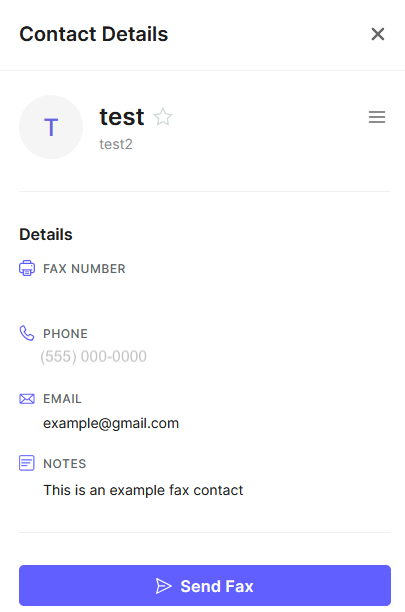
Yes, you can add notes to any contact you’ve created to provide more details about the number you’re saving. Enter your note in the Contact Details menu when editing an existing contact or creating a new contact.
Once you’ve entered some notes, click Save Changes and your note will now appear in the contact details menu.
How do I delete a contact?
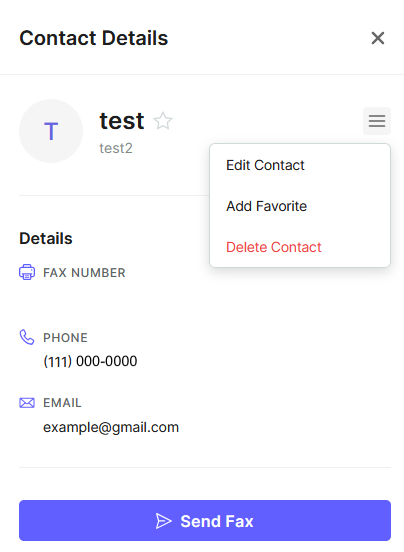
To delete a contact, edit an existing contact by clicking the pencil icon and clicking the hamburger menu (three horizontal lines) on the top right of the contact details menu. Click Delete Contact to remove this contact.
Can I send a fax to multiple contacts at the same time?
No, you can’t send a fax to multiple contacts at the same time. This is a limitation of faxing in general, as documents are transmitted on a one-to-one basis — from one fax number to another.